
To slow down a song on iPhone without changing pitch or losing audio quality, you need an app that uses proper time-stretching. Import the track, reduce the playback speed, and the music stays in the original key while the tempo slows down. AudioTweak does this well and it’s free to get started.
Keep reading to learn more about how it works and how to do it.
Why most apps mess up the audio
When you slow down a track in a regular media player, you’re usually just reducing the playback sample rate. The audio gets stretched in the crudest possible way, pitch drops along with the tempo, and everything sounds like a tape machine running out of battery. Useless for figuring out what’s actually being played.
The solution is time-stretching: a processing method that decouples tempo from pitch. The algorithm redistributes audio frames to cover more time without changing their frequency content. The result is that a song at 60% speed sounds tonally identical to the original, just slower. Good implementations handle transients cleanly enough that you can still hear pick attack, breath before a note, the difference between a bend and a slide.
It’s not magic, and at very low speeds (below 40% or so) you’ll start hearing artifacts regardless of the algorithm. But for the 60-80% range where most musicians actually work, it’s clean enough to practice with.
Using AudioTweak
AudioTweak is a practice-focused app for iPhone and iPad. Here’s how a typical session goes.
Importing a track
Tap + to create a new project and pull in your audio. It can read from your local library, iCloud, the Files app, other apps via the share sheet, or extract audio directly from a video in your Photos app.
One thing to know upfront: DRM-locked files from Apple Music or Spotify can’t be imported. You need a local file. MP3, AAC, WAV, M4A all work fine.
Setting the speed
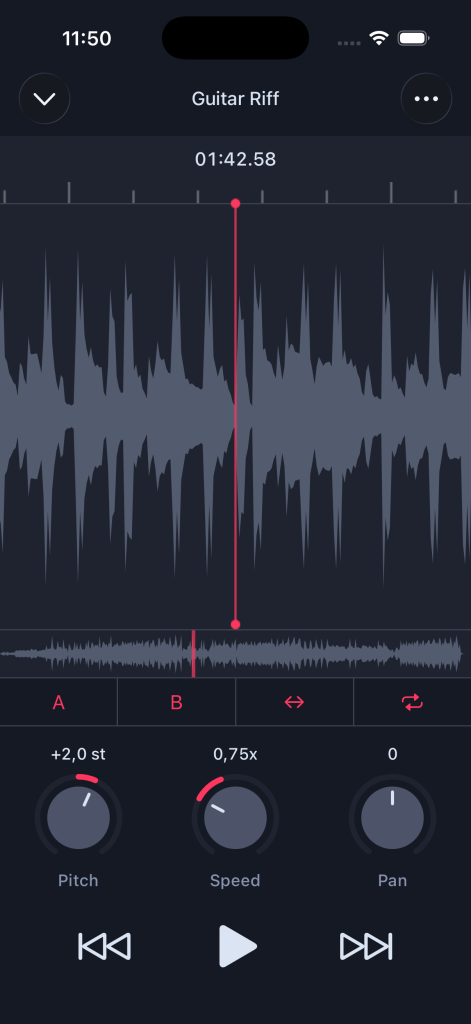
The speed control is on the main screen. You can go from 25% to 200% of the original tempo. Pitch doesn’t move.
In practice, 75% is a good starting point for most passages. It’s slow enough to follow comfortably but fast enough that the phrasing still makes sense. Drop lower from there if you need to, but try not to spend too much time below 50% or you’ll lose the feel of what the player is doing.
Looping a section
Set an A point at the start of the phrase and a B point at the end. The app loops that region on repeat, hands-free. No scrubbing, no rewinding, just continuous playback of the passage you’re working on.
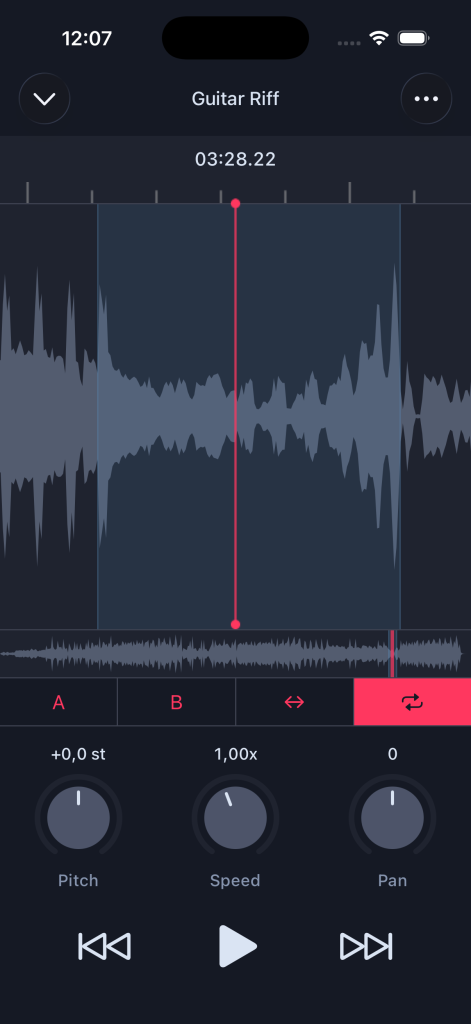
This is the feature that makes the difference in practice. Being able to set a two-bar loop and just play along, adjusting speed as you go, is a lot more useful than stopping and restarting manually every time.
EQ (Pro feature)
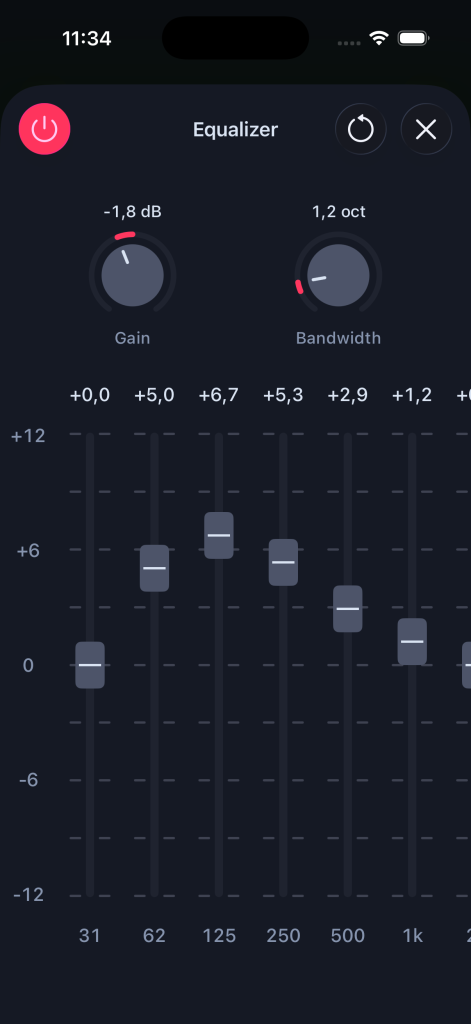
If you’re trying to hear a specific part in a dense mix, the 10-band EQ can help. Shelving out the high frequencies and boosting around 100-250Hz makes a buried bassline a lot clearer, for example. It’s a blunt tool compared to proper stem separation, but it works for a lot of situations.
What about pitch shifting at the same time?
If you need to practice in a different key, you can transpose up or down by up to 24 semitones independently of the speed. So if a track is in E and you want to work on it in D, you shift down 2 semitones and the speed stays wherever you set it. Both controls work simultaneously in real time.
Useful for singers matching a song to their range, or guitarists whose instrument is tuned down a half step.
Other options
YouTube preserves pitch when you slow down, which is better than nothing. The main problem for practice is that you can’t set a loop region. You can slow a passage to 0.75x but you’re still manually scrubbing back to repeat it, which breaks your concentration. Fine for a quick listen, frustrating for actual drilling.
GarageBand can technically do this, but loading a track, setting the tempo, and getting a loop going takes long enough that it’s not practical as a practice tool. It’s a DAW, and this isn’t what it’s designed for.
Frequently asked questions
Does the audio quality actually hold up? At practice speeds (60-90%), yes, it’s clean enough. Below 40% you’ll hear some smearing on sustained notes and transients start to sound a bit granular. Still usable for figuring out notes, but you lose some of the nuance in the playing.
Can I slow down tracks from Apple Music? No. Apple Music files are DRM-protected and can’t be read by third-party apps. You need a local copy, either a purchased download, a rip, or a file from a DRM-free source.
Does it work offline? Yes, once a track is imported the app works entirely offline.
Can I export the processed audio? With Pro, yes. You can export a loop region or the full track as MP4, WAV, or CAF. Handy if you want to load a slowed-down version into another app or share it.
What’s free vs Pro? Speed control, pitch shift, and A/B looping are free. The 10-band EQ, count-in metronome, export, and unlimited projects are Pro. Pro is available as a subscription or one-time purchase.
Bottom line
If you’re learning by ear, time-stretching is one of the genuinely useful tools available to musicians now. Being able to slow a passage down without it turning to mush, loop it, and play along is a significant practical improvement over rewinding a cassette or scrubbing a YouTube video.
AudioTweak handles the basics well and doesn’t get in the way. Free to try, no account needed.